


Fly Go 4 Drone Camera Control
4.3326.00 Reviews
App Specs
- Version
- 1.5.2
- Updated On
- License
- Free
- Downloads
- 1,000,000+
- Developer
- Apponfire Co. Ltd.
- Categories
- Photography
- Platform
- Android
Screenshots
 Analysis by AppCompare
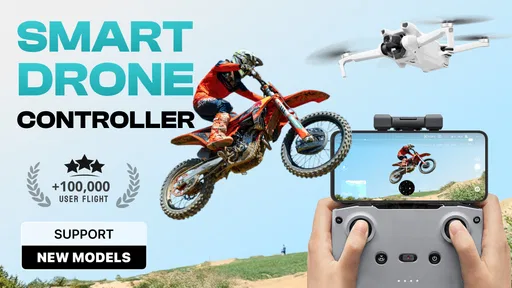
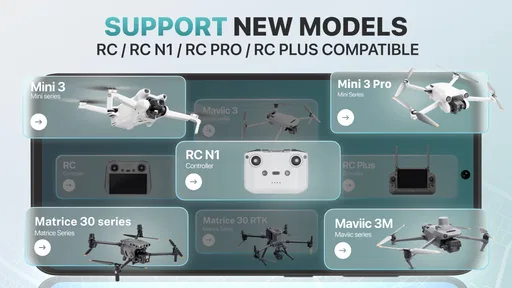
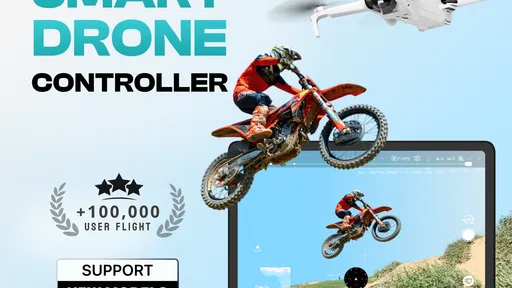
I’d approach Fly Go 4 Drone Camera Control as a tool to test against the drone I actually own, rather than assume one controller app fits every aircraft. That matters before a trip to the park or a planned shoot: a controller can only help if it works with your setup, and the app’s broad appeal is tied to support for more than forty drone cameras. I would check compatibility before relying on it for an important flight, then do a short, low-stakes test close to home.
Start with the aircraft, not the shot
My first step with any drone-control app is to get the aircraft and phone ready on the ground, in a place where I can pay attention without rushing. I’d install the app, look through its connection and control screens, and confirm the live view and basic response before planning a camera move. That simple order is useful: it separates a setup problem from a flight problem, and it avoids discovering a connection snag when the drone is already in the air.
There is also a practical difference between an app that supplements a drone and the manufacturer’s own controller software. A maker’s app may be the more natural choice if you want its established workflow or are already comfortable with it. Fly Go 4 is more compelling when you want one alternative to consider across supported camera drones, rather than a separate app for every device. I would treat that convenience as a reason to test it, not as a guarantee that every control behaves identically across aircraft.
A careful first-flight routine
Once connected, I’d keep the first flight deliberately plain: check that the on-screen controls make sense, lift off only when the area is suitable, and make small movements while watching both the drone and the display. I wouldn’t begin by changing several camera settings or trying an automated mode. Doing one thing at a time makes it easier to tell whether a response comes from the aircraft, the app, or my own input.
This kind of routine is especially helpful for a new pilot. A tidy screen can make controls less intimidating, but a simple interface is not a substitute for learning the drone’s behavior. Before relying on any assisted flight option, I’d learn how to pause or take back control and keep the aircraft within a comfortable visual range. The most useful first session is not the one with the most dramatic footage; it is the one that leaves me confident about the basic handoffs between phone, drone, and pilot.
Turning a flight into usable footage
After the connection and basic handling feel dependable, I’d move on to framing. Fly Go 4’s camera controls are useful for adjusting exposure, white balance, and shutter speed, which gives me more say over how a scene looks than a simple point-and-record approach. I’d change one setting at a time, watch the live feed, and make a short test clip before committing to a longer sequence. That makes it easier to spot an adjustment that looks good on the screen but does not suit the actual light.
A realistic example is filming a quiet walk along a broad, open path. I could first frame a static view, check the image, and then attempt a slow movement with the drone only if the surroundings and local rules make that appropriate. If the light changes as I move from shade into sun, exposure adjustments may help keep the result intentional. I would still prioritize safe piloting over a perfect take; a shot can be repeated, but a risky flight is not worth it.
Worth Reading Before You Choose

EA SPORTS FC Mobile 26 Is a Bigger Football Game, but It Takes Time

Flipboard Shows What News Apps Must Do Beyond the Feed

Switching to Android Auto Means Rethinking Your Driving Routine

Google Calendar Makes a Crowded Week Easier to Manage

Ludo King Makes the Most of the Minutes Between Plans

Baby Panda World Brings Quick Play to Modern Phones, but Its Game Library Feels Busy
The same approach helps when filming a family outing or a small property from above. I’d decide in advance what the clip needs to show, keep the flight short, and avoid trying to operate the camera and navigate through a tight space at once. A phone screen gives helpful framing, but it can draw attention away from the aircraft. For a complicated scene, a second person watching the drone is a more sensible handoff than expecting the pilot to monitor every detail alone.
Where the workflow changes hands
Drone filming is not just a matter of tapping record. The pilot watches the aircraft, the app presents controls and a camera view, and the finished footage has to be reviewed later. I find it helpful to treat those as separate jobs. Before launch, I’d settle the framing plan; during flight, I’d focus on control and awareness; after landing, I’d check whether the footage achieved the goal. Trying to solve all three jobs at once is where an otherwise straightforward session can become hectic.
Automated modes can shift some of the work, but they do not remove the pilot’s responsibility. A Follow Me option may be useful for a moving subject when the space is open and the drone can be watched carefully. I would not make it my first test in a crowded place, near obstacles, or somewhere I cannot react quickly. For a simple moving shot, it can reduce the need to coordinate every camera move manually; for a sensitive or unpredictable setting, a controlled manual flight—or no flight at all—is the better choice.
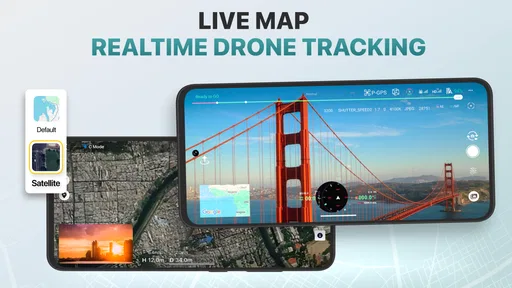
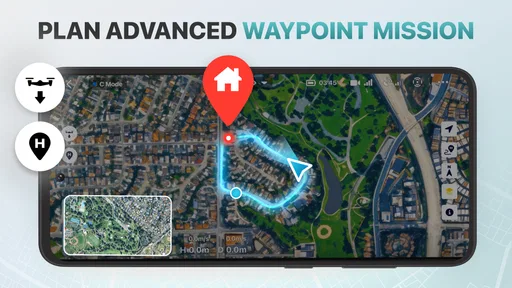
The map and zone information also belongs in the planning stage, not as a last-second check after takeoff. I’d use it as one part of deciding whether a location is suitable, then apply common sense and follow applicable local flight rules. An app map can inform a decision, but it should not be treated as permission to fly. That distinction matters most when visiting an unfamiliar park or traveling with a drone, where a quick glance at a screen cannot replace checking the rules for the exact place.
Who is likely to get the most from it
I can see Fly Go 4 suiting someone who wants a phone-based way to control a compatible drone camera and adjust the look of footage without immediately moving to a more involved editing workflow. It may also appeal to a casual owner who flies occasionally and wants the controls, camera view, and location planning gathered in one place. Apponfire Co. Ltd. developed it, and its photography focus is evident in the attention given to framing and camera settings.
It is less suited to someone who expects an app to make flying risk-free, or who wants to skip checking which aircraft and functions are supported. Experienced pilots who already have a dependable manufacturer app may have little reason to switch unless Fly Go 4’s particular controls fit their routine better. Likewise, if your priority is advanced post-production rather than controlling a drone during capture, a dedicated editing app is the more relevant tool. I’d choose based on the part of the process I actually want to improve.
For a newcomer, the learning curve is not only about finding buttons. It is about understanding how the drone reacts, how quickly a shot can become a distraction, and when to stop adjusting the image and bring the aircraft back. I’d practice camera changes while stationary or in a safe, uncomplicated setting before combining them with movement. That small habit makes the app’s extra control useful without turning every flight into a multitasking exercise.
Taking Off with Fly Go 4
First things first, setting up Fly Go 4 Drone Camera Control was a breeze. The app is available for both Android and iOS, so no worries about compatibility there. Once installed, it quickly connected to my drone, and I was ready to go. The interface is sleek and intuitive, making it easy to find your way around even if you’re not super tech-savvy.
User-Friendly Interface
One of the standout features is the user interface. It's designed with simplicity in mind, which I appreciated as I navigated through the different options. The dashboard provides a clear view of all the essential controls, from camera adjustments to flight modes. You can easily switch between different settings with just a tap, which is super handy when you’re trying to capture that perfect shot.
Camera Control and Features
Now, let’s talk about what truly sets Fly Go 4 apart: its camera controls. As someone who loves capturing stunning aerial shots, the app's camera features were a highlight for me. You get to play around with various settings like exposure, white balance, and even shutter speed. This level of control means you can tailor your shots to look exactly how you envision them. Plus, the real-time video feed is crisp and clear, so you always know what your drone is capturing.
Flight Modes and Stability
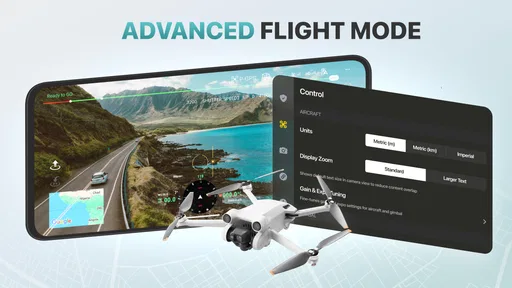
Fly Go 4 doesn’t skimp on flight modes either. From beginner-friendly modes that help stabilize the drone, to advanced options for those daring maneuvers, it’s got something for everyone. I particularly enjoyed the ‘Follow Me’ mode, which tracks the user’s movement and adjusts the drone’s position accordingly. It’s perfect for capturing dynamic shots without needing an extra pair of hands.
Safety Features
Safety is a big deal when it comes to flying drones, and Fly Go 4 shines here too. The app includes features like obstacle detection and return-to-home, which are crucial for preventing accidents. I felt a lot more secure knowing that the app would guide my drone back if it ever lost connection. It’s these little details that make a huge difference in the overall experience.
Battery Management
Another aspect worth mentioning is battery management. The app provides real-time updates on your drone’s battery life, which is essential for planning your flights. It even sends notifications when it’s time to start heading back to base, ensuring you don’t end up stranded mid-air.
Room for Improvement
Now, while Fly Go 4 is packed with features, there are a couple of areas where I think it could improve. For instance, the initial setup instructions could be a bit more detailed for absolute beginners. Also, while the app runs smoothly most of the time, I did notice a slight lag when switching between camera settings during a particularly windy day.
However, these are minor hiccups in an otherwise stellar application. The team behind Fly Go 4 seems committed to regular updates, so I’m optimistic about future improvements.
Final Thoughts
So, is Fly Go 4 Drone Camera Control worth your time? Absolutely! It’s a robust app that caters to both novice and experienced pilots, offering a range of features that enhance your flying and filming experience. The convenience and control it offers are hard to beat, making it an excellent tool for anyone looking to up their drone game.
If you’re curious or want to take your drone adventures to the next level, I’d definitely recommend giving Fly Go 4 a try. Happy flying!
Practical details before you install
Fly Go 4 is a free photography app, though it also offers in-app purchases priced from $6.99 to $69.99 per item. I’d start with the free experience and decide whether it fits my drone and routine before spending anything. Its current version is 1.3.0, and it requires iOS 8.1 or later. The age rating is Everyone, which describes its content rating rather than whether drone flying itself is appropriate in every setting.
The app has an average rating of 4.4 from around fourteen thousand ratings, with more than two hundred written reviews, and it has passed one hundred thousand installs. Those figures suggest it has attracted a meaningful user base, but I would not use popularity as a substitute for checking the fit with my own aircraft. Drone models, phone behavior, and personal expectations vary, so my own short compatibility test would matter more than a high rating when planning a real flight.
Small decisions that improve a session
One useful habit is to separate camera experimentation from flight experimentation. If I am trying a new exposure or white-balance setting, I’d keep the drone stationary or use a very simple path first. If I am learning a flight mode, I’d leave the image settings alone. That way, I can tell what caused an unexpected result instead of changing several things and guessing afterward.
I would also plan a fallback before using a phone-based controller away from home. That means knowing how I will end the flight, keeping the drone in view, and choosing a location where I have room to respond if the live feed or controls become distracting. The app can make camera work more convenient, but the pilot still has to make the final call about wind, people nearby, and whether continuing is sensible.
For someone weighing it against the usual alternatives, the choice is fairly practical: use the drone maker’s software if its controls are already familiar and reliable for your aircraft; consider Fly Go 4 if you want to explore a different camera-control workflow across supported models; choose separate photography software if your main need begins after the flight, with editing and organizing images. These tools solve different parts of the job, so replacing one with another only makes sense when the task genuinely overlaps.
My bottom line is that Fly Go 4 is most appealing when its supported-drone control, camera adjustments, and flight planning all match the way you like to work. I would not buy or travel with a drone on the assumption that any controller app will cover every model, and I would not rely on an assisted mode before learning the basics. But with a compatible aircraft, a cautious first test, and realistic expectations, it offers a useful route from setup to a more deliberately composed aerial shot.
Pros
- User-friendly interface for easy navigation.
- High-quality video streaming with minimal lag.
- Comprehensive flight tutorials for beginners.
- Customizable controls for personalized experience.
- Wide range of compatible drone models.
Cons
- Battery consumption is relatively high.
- Limited features in free version.
- Occasional connectivity issues reported.
- App size is large
- requiring ample storage.
- Some features need stable internet connection.
FAQs for Fly Go 4 Drone Camera Control
What features does Fly Go 4 offer for drone control?
Fly Go 4 provides a comprehensive suite of features for drone enthusiasts, including real-time video streaming, waypoint navigation, and obstacle detection. Users can also access advanced camera controls, such as shutter speed and ISO settings, ensuring high-quality aerial photography and videography.
Is Fly Go 4 compatible with all types of drones?
Fly Go 4 is compatible with a wide range of popular drone models. However, it is important to check the app's compatibility list on the official website or app store to ensure it supports your specific drone model. This ensures optimal performance and full feature access.
Does Fly Go 4 require an internet connection to function?
While Fly Go 4 can operate without an internet connection for basic drone control, some features, such as map updates and real-time data streaming, do require connectivity. It's recommended to have a stable internet connection for accessing all functionalities and ensuring a smooth flying experience.
How user-friendly is Fly Go 4 for beginners?
Fly Go 4 is designed with an intuitive interface, making it accessible for beginners as well as seasoned drone pilots. The app offers tutorials and tips to help new users get acquainted with its features, ensuring a smooth learning curve and enhancing the overall flying experience.
Are there any in-app purchases or subscriptions in Fly Go 4?
Fly Go 4 offers both free and premium features. While the basic version provides essential functionalities, advanced features and tools are available through in-app purchases or a subscription model. Users can choose based on their needs, with premium options providing enhanced control and additional tools.


